The Drop · September 16, 2026
Slowed and reverb, sped up and nightcore: visuals for a speed edit
You changed the speed of the song, so you changed everything the visualizer measures. Two things move, and only one of them is the tempo.
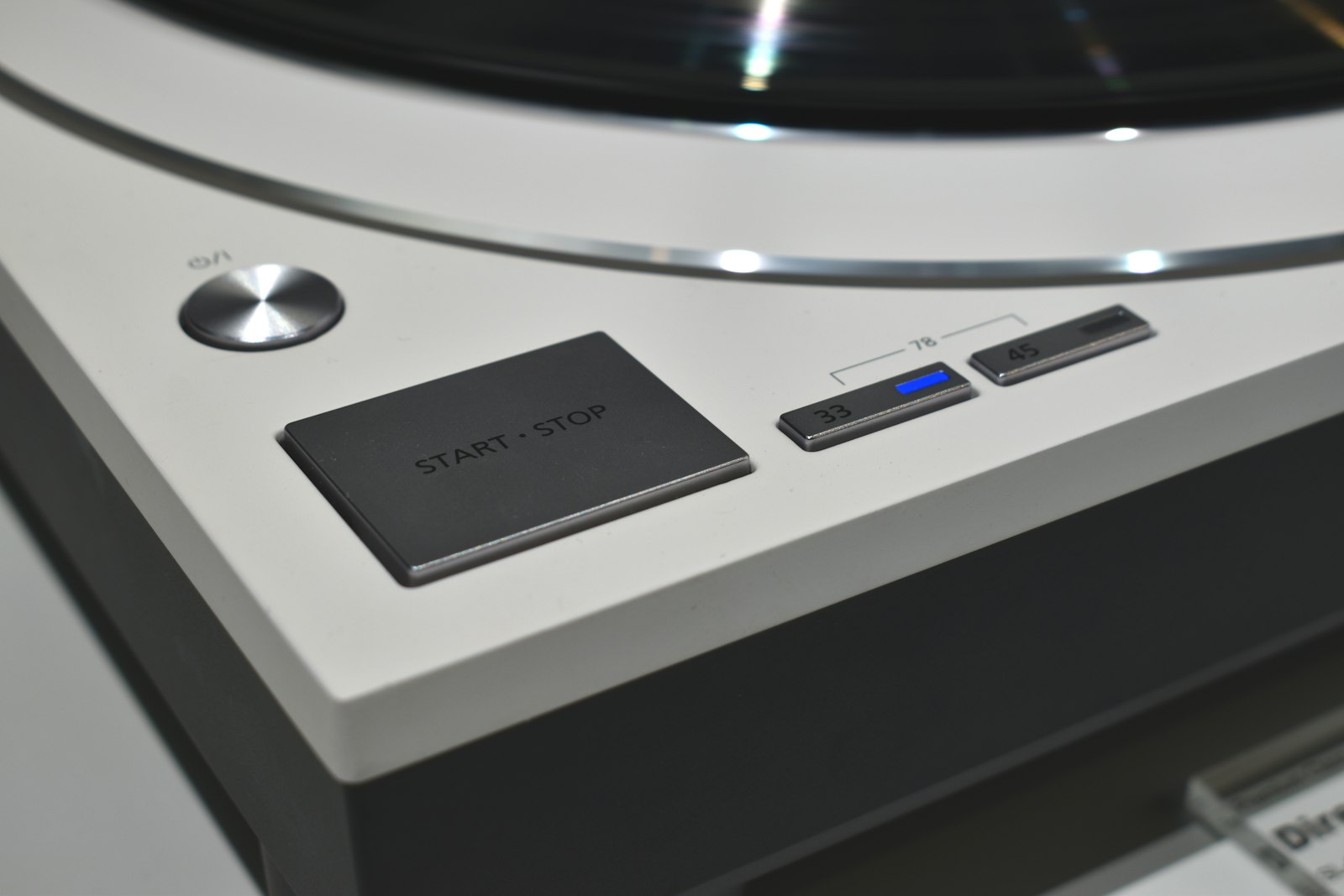
Photo via Unsplash
Playing a 33 record at 45 was the first speed edit, and it is still the honest description of what a modern one is. The song gets faster and higher at once, because the two are the same knob. Audacity's manual says it plainly: Change Speed alters tempo, pitch and frequency content together, and it is the tool for fixing a record played at the wrong speed.
The app never sees the original
There is no speed control in this tool. No rate slider, no half time button, nothing that touches playback. Whatever bounced out of your speed editor is the entire truth as far as a slowed and reverb visualizer is concerned, so make the edit first and upload that file.
Which is good news, mostly. The picture follows the audio it is given. The two parts worth knowing about are the tempo number the app prints and what a long reverb tail does to the drum triggers.
What a speed edit does to the detected tempo
When your file loads, the app scans the first 60 seconds offline and autocorrelates the energy envelope from 60 to 180 BPM in half step increments. Then one rule runs after the scan: if the winner came in under 95 BPM and double time also scores well, the number is doubled. That rule exists so a slow, sparse track still lands on a danceable grid, and the beat detection guide walks through the whole pipeline.
Slowed side first, because it is the easy one. Take a 140 BPM track to 0.8x and you get 112 BPM. That sits comfortably inside the scan and the app prints 112. No surprises.
Sped up is where people expect trouble. Push that same 140 to 1.3x and the track is 182 BPM, past the top of the scan, so the scan settles on 91, half the real tempo and a genuine periodicity in the music. But 91 is under 95 and double time scores well, because double time is the actual tempo, so the rule fires and the number goes back to 182. The app recovers.
So the line is not the 180 in the scan. It is 190, and here is why. Above 180 the app can only find half of your tempo, and it will only double that back up if half is under 95. Half of 190 is 95 exactly, which does not qualify.
- Up to 180 BPM after the edit. Found directly, printed correctly.
- Between 180 and 190. Found at half, doubled back, printed correctly.
- 190 and above. Found at half, left there. A 160 BPM track at 1.25x is 200 BPM and the app will tell you 100.
Slowed edits have a mirror version of the same rule. An 80 BPM track at 0.8x lands on 64 BPM, under 95, so if the offbeat hats correlate the app can promote it to 128 and hand you a grid at double the tempo you are feeling. Either way the habit is the same: read the BPM the app prints when the file loads, multiply your original tempo by your multiplier, and compare. If the two disagree by a factor of two, nothing is broken, you just want the other content rate.
Setting the content rate after the number moves
Content changes ride that detected tempo, so the setting and the result only line up if the number is right. A beat at 112 BPM is 536 ms of screen time. A beat at 182 BPM is 330 ms. The same menu option is two different videos.
For a slowed edit, space is the entire aesthetic, so resist the reflex to speed the picture up to compensate. Every beat or every 2 beats lets an image sit long enough to be looked at. The calm configuration in the lofi post is the neighbouring setup and most of it applies directly.
For a nightcore or sped up edit the arithmetic starts working against you. At 182 BPM the frantic quarter beat option changes content every 82 ms, and flashes have a hard floor of 90 ms between them, so the picture would be swapping faster than the app can possibly flash. Every half beat, at 165 ms, is the fast end that still has a flash on each change. If the tempo printed at half, everything above doubles.
Reverb is the part that actually changes behaviour
The per drum image triggers do not look at how loud a band is. They look at how much it rose since the previous frame, which is why a sustained bassline does not keep firing the kick trigger. A reverb tail attacks that from both sides.
First, it fills the gap. The frame before the snare is no longer quiet, it is full of the last snare, so the rise into the new hit is smaller. Second, each band compares its rise against a rolling average of roughly the last 0.7 seconds, and a wash of reverb lifts that average, which lifts the threshold. Less rise measured against a higher bar. Heavy reverb on a drum bus is the exact opposite problem to a dry trap beat, where every hit is a cliff edge.
There is also a floor under each trigger that no amount of tail gets you past, and the per drum thresholds are not sliders. Beat sensitivity feeds the main full band flash detector, not the kick, snare and hat triggers. So if the triggers go quiet on a reverb heavy edit:
- Bounce the drums dry, or drier. Put the reverb on the vocal and the melody and leave the transients alone. The edit still reads as slowed and reverb and the detector gets its attacks back.
- Drop Beat sensitivity toward the low end. The flash detector is a ratio against a rolling average, so a lower multiplier finds hits in a smoother signal.
- Switch the trigger mode to Fixed interval. It ignores the audio and flashes on a clock. Divide 60000 by your tempo to get one flash per beat, so 536 ms at 112 BPM.
- Lean on the overlays. The vocal visualizer reads level rather than onsets, and level is the one thing reverb gives you plenty of.
One caution before you render
Sped up edits invite fast flashing, and fast flashing is a real hazard. Flash rates above roughly three per second can trigger seizures in people with photosensitive epilepsy. A 182 BPM edit is 3.03 beats per second, so a flash on every beat sits on that line before you have added any flicker on top of it. Keep the flicker opacity low or at zero for anything a listener will sit with, put a warning in the description, and remember that the slowed side of this post is one of the few genuinely calm things you can make here.
The short version
- Make the speed edit first. The app has no rate control and only sees the file.
- Resampling moves pitch and tempo together, so every frequency band shifts too.
- Read the BPM the app prints. Above 190 after the edit it prints half your tempo.
- Slowed edits want every beat or every 2 beats. Nightcore wants every half beat at most.
- Reverb starves the drum triggers. Bounce the drums dry or run a fixed interval.
- Turn the flashing down on the fast ones.
Bring the edit, keep the settings
Free, in the browser, no signup and no watermark. Your audio never leaves your machine and each render comes out as a 1080p WebM. Upload the slowed version, check the tempo it reads, and set the content rate from there, or take the tour from the home page.
Open the visualizer